It’s been a while since my last blog update. After joining a new company, I’ve been quite busy and haven’t been able to update the blog as frequently as before. However, the VPN I set up on this VPS is used daily and performs quite well. Recently, I’ve been focusing on Android performance-related topics, specifically Android performance optimization. I’ve realized how little I actually know about this area, so I’m starting from the application layer and working my way down, learning step by step. This series will document my learnings and summaries related to performance optimization.
First, let’s discuss GPU overdraw, which is often the most direct aspect developers encounter. This topic will be divided into two parts: Part 1 will cover the basic principles of GPU overdraw and provide optimization suggestions, while Part 2 will use practical examples to demonstrate general steps for optimizing GPU overdraw.
What is GPU Overdraw?
GPU Overdraw Concept: GPU overdraw occurs when a single pixel on the screen is drawn multiple times (more than once). For example, if a TextView has a background, the pixels displaying the text are drawn at least twice - once for the background and once for the text. GPU overdraw inevitably impacts performance to some extent. Device memory bandwidth is limited, and when overdraw causes an application to require more bandwidth than what’s available, performance degrades. Bandwidth limitations vary across different devices.
Causes of GPU Overdraw
- Too many overlapping Views: Multiple views occupying the same screen area
- Complex hierarchical stacking: Deep view hierarchies with unnecessary nesting
- Longer inflation times: XML layouts with excessive complexity
Impact of GPU Overdraw and Poor XML Layouts
XML Parsing Overhead: Layout files are XML files. Inflating a layout file involves parsing XML, creating corresponding layout objects based on tag information, and establishing associations. More tags and attributes in the XML, along with deeper node tree depth, result in more conditional logic, function nesting, and recursion during parsing, thus consuming more time.
Measurement and Drawing Costs: Inflation is just the first step in layout impact. For an interface to be displayed, after
requestLayout(), a series of measure, layout, and draw operations must be executed. The execution time of each step is affected by the layout quality itself. The final display of the interface occurs only after all these operations are completed, so poor layout quality increases the time cost of each step, resulting in longer overall display times.
Basic Concepts and Detection Methods
Android provides three tools to help identify and resolve overdraw issues:
- Hierarchy Viewer - For analyzing view hierarchies
- Tracer for OpenGL - For GPU performance analysis
- Show GPU Overdraw - For visualizing overdraw areas (available in Developer Options)
GPU Overdraw Testing
Overdraw testing is primarily done manually and is the preferred method for discovering application overdraw. Enable “Show GPU Overdraw” in Developer Options:
- On Meizu phones: Settings → Accessibility → Developer Tools → Hardware Accelerated Rendering → Debug GPU Overdraw → Show Overdraw Areas
- Note: Meizu phones require enabling developer mode by entering
*#*#6961#*#*in the phone dialer - PS: This feature is only available on Android 4.2 and above
Color Coding for Overdraw Visualization
GPU overdraw visualization uses the following color coding (from best to worst):
| Color | Meaning | Overdraw Level |
|---|---|---|
| Blue | Optimal | 1x overdraw |
| Green | Acceptable | 2x overdraw |
| Light Red | Warning | 3x overdraw |
| Red | Critical | 4x+ overdraw |
Acceptance Criteria
- Control overdraw to 2x (green areas)
- No 4x overdraw allowed (red areas)
- No 3x overdraw (light red areas) covering more than 1/4 of the screen area
Optimization Tools
1. Lint Tool
The Lint tool is Android’s built-in code analysis tool that helps identify potential performance issues and optimization opportunities:
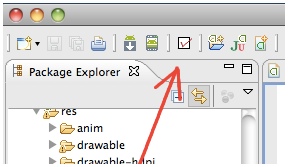
- In Eclipse: Click to run, and suggestions appear in the bottom window
- In Android Studio: Built-in Lint tool marks suboptimal areas in yellow
- Command Line: Can be run via command line for automated checks
Key Benefits:
- Provides excellent optimization suggestions for layouts
- Identifies unreasonable or potentially risky code modules
- Regular use helps maintain code quality
Best Practice: Use the Lint tool frequently to check your application and address all suggestions.
2. Lint Tool Improvement Examples
From official documentation, here are common Lint suggestions for layout optimization:
| Suggestion | Description | Benefit |
|---|---|---|
| Use compound drawables | Replace LinearLayout with ImageView+TextView using a compound drawable | Reduces view count |
| Merge root frame | Replace root FrameLayout without background/padding with <merge> tag |
Reduces nesting |
| Useless leaf | Remove layouts with no children or background | Flattens hierarchy |
| Useless parent | Remove intermediate layouts without siblings or background | Reduces nesting |
| Deep layouts | Avoid layouts with excessive nesting (>10 levels default) | Improves performance |
3. Hierarchy Viewer
Hierarchy Viewer is part of ADT tools (or Android Monitor) for analyzing view hierarchies:
- Purpose: Quickly interpret view hierarchies and identify layout issues
- Usage: Particularly useful for handling layout issues and performance problems
- Limitation: By default, only works on non-encrypted devices (engineering phones, tablets, or emulators)
For Production Devices: To use Hierarchy Viewer on any phone, add ViewServer to your application.
How to Use:
- Connect to the device
- Open Hierarchy Viewer (located in
tools/directory or viahierarchyviewercommand) - Select the target process
- Click “Load View Hierarchy” to display the layout tree
Performance Indicators: Each view module shows three traffic lights representing Measure, Layout, and Draw performance.
Layout Optimization Best Practices
Following these conventional and effective layout principles can help create efficient and reusable UIs:
1. Layout Container Selection
Prefer RelativeLayout and LinearLayout, avoid AbsoluteLayout:
- LinearLayout: Use for simple, linear arrangements. With the same layout hierarchy, LinearLayout performs slightly better than RelativeLayout.
- RelativeLayout: Use for complex layouts. RelativeLayout can achieve layouts that would otherwise require LinearLayout nesting, reducing hierarchy depth.
2. Code Reuse and Lazy Loading
<include>tag: Extract reusable components and include them where needed<ViewStub>tag: Load infrequently used layouts lazily- Dynamic Inflation: Better performance than
setVisibility()for showing/hiding views. ViewStub is the optimal choice for this pattern. <merge>tag: Reduce layout nesting levels by merging redundant parent layouts
3. Background Optimization
Remove Redundant Background Colors:
- For layouts with multiple background colors, keep only the top layer’s color
- For layouts using Selector as background (e.g., ListView items), set the normal state color to
"@android:color/transparent"
Detection Method: Export HierarchyView diagram as PSD and analyze in Photoshop (see this video)
4. Performance Considerations
- Avoid
layout_weightin nested LinearLayouts: Each child component needs to be measured twice, incurring expensive system resources. This is particularly important in ListView and GridView where child components are repeatedly created. - Prefer wide and shallow layouts: Create layouts that are wide (more siblings) and shallow (fewer nesting levels) rather than narrow and deep, as reflected in Hierarchy Viewer’s Tree view.
Source Code References
For developers interested in understanding the implementation details, here are the relevant source code locations:
1. Overdraw Rendering Implementation
File: /frameworks/base/libs/hwui/OpenGLRenderer.cpp
This file contains the core implementation for rendering overdraw visualization:
1 | void OpenGLRenderer::renderOverdraw() { |
2. Overdraw Counter Implementation
File: Framework/base/core/java/android/view/HardwareRender.java
This file contains the implementation for displaying the overdraw counter value (Note: This feature was removed in Android 5.0):
1 | private void debugOverdraw(View.AttachInfo attachInfo, Rect dirty, |
Reference Articles
Performance Optimization Guides
- Optimization Process - Case study on Android performance optimization
- Decompilation and Adding GPU Display - Technical deep dive into GPU display implementation
Official Android Documentation
- Optimizing Layouts - Official guide for layout optimization
- Reusing Layouts - Using
<include>tag effectively - Loading Layouts On-Demand - Lazy loading with ViewStub
- Smooth Scrolling - Performance tips for scrolling
- Hierarchy Viewer Tool - Official tool documentation
- Lint Tool Tips - Best practices for using Lint
About Me && Blog
Below is my personal introduction and related links. I look forward to exchanging ideas with fellow professionals in the field. When three people walk together, one is bound to be my teacher!
- Blogger’s Personal Introduction: Contains my WeChat and WeChat group links.
- Blog Content Navigation: A navigation guide for my blog content.
- Personally Curated and Collected Excellent Blog Articles - Must-Know Android Performance Optimization: Welcome to recommend and self-recommend (private message on WeChat is fine)
- Android Performance Optimization Knowledge Planet: Welcome to join, thank you for your support!
One person can walk faster, but a group of people can walk farther