Android Studio
As Google’s “own son,” the Nexus phone series receives special treatment that is obvious to everyone. After Android 5.0 was released, the Nexus 5 was updated to the latest system immediately. Similarly, Android Studio, as Google’s official IDE, is highly valued. I switched from Eclipse to Android Studio right from the start, upgrading from the initial beta versions all the way to the current 1.0 stable version (1.1 was released today, and I’ve already upgraded).
I don’t need to elaborate on the benefits of Android Studio; the following two points should be enough to convince you to switch:
- Android Studio is the official IDE designated by Google. The official website has removed ADT. You can check it on the Android Developer Website. Currently, only Android Studio is available for download.
- Google has also stated that ADT is no longer being maintained.
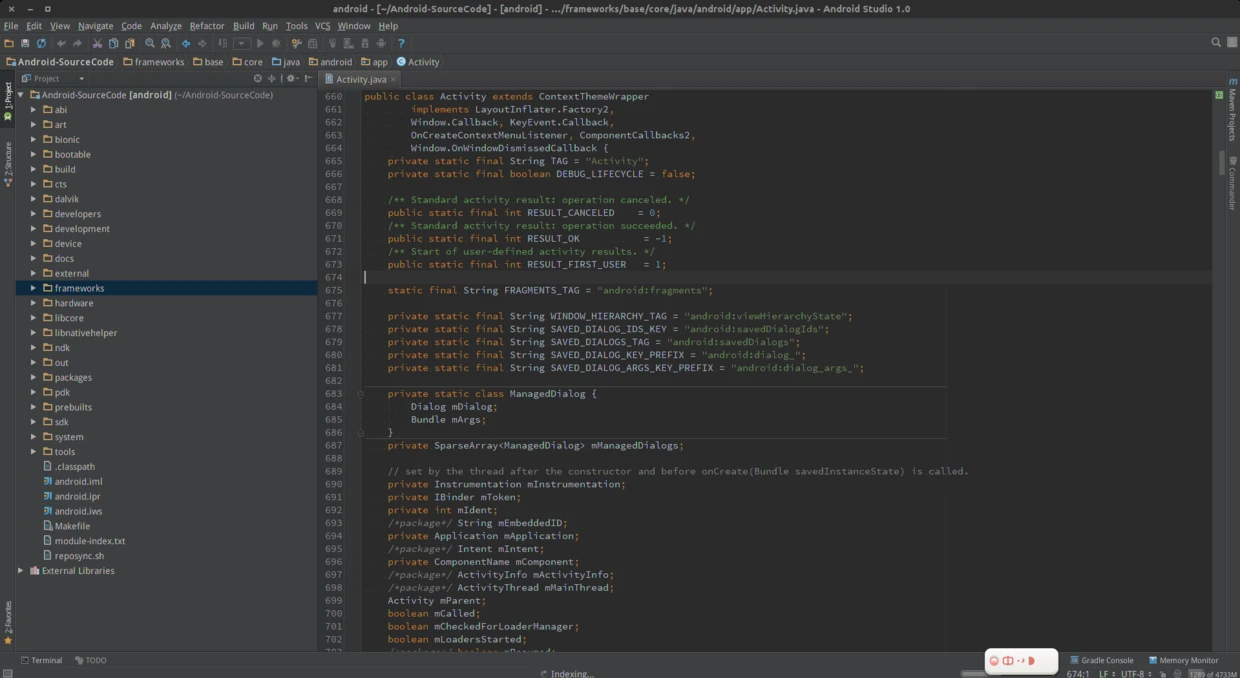
Switching to Android Studio is the general trend. There are countless posts online about how to use Android Studio, so I won’t waste words praising it. Just look at the image below; it should give you enough desire to switch. For more details, you can view the Android Studio Official Documentation.
Android 5.0: Lollipop
Android Lollipop was launched by Google this year. You can check the Official Lollipop Introduction for detailed information. As developers, we shouldn’t just stay on the surface (like Lollipop’s fancy interface and the new Material Design language); we need to understand the underlying principles.
Preparation
Before using Android Studio to view the source code, you need to do a few things:
- Download the Android Lollipop source code (it doesn’t necessarily have to be Lollipop; other versions are fine too).
- Perform a full compilation (you cannot import the source code without compiling it first).
You can refer to the Google Official Tutorial to ensure everything goes smoothly.
Steps
- Enter the Android source code root directory.
- Execute:
mmm development/tools/idegen/
This command compiles theidegenproject and generates theidegen.jarfile. Upon success, it will show the location of the jar package and displaymake completed successfully. - Execute:
sh ./development/tools/idegen/idegen.sh
This command generates the corresponding files:android.iws,android.ipr, andandroid.iml. - After generating the files, open Android Studio, select “Open an existing Android Studio project”, choose the Android source code root directory, and import it (the
android.iprfile is the key one). After configuring the SDK version, you can view the Android source code. - That’s it, there is no next step.
Troubleshooting
Compilation fails during the first command. Common reasons include:
- Android source code was not downloaded completely.
- A full compilation was not performed.
- Environment variable configuration issues.
The solution depends on the specific error. There are many posts online about this; I recommend searching on Google or asking on StackOverflow.
Error during the second command:
1
2
3
4
5
Exception in thread "main" java.io.FileNotFoundException: ./out/target/product/hammerhead/obj/GYP/shared_intermediates/res.java (Is a directory)
at java.io.FileInputStream.open(Native Method)
at java.io.FileInputStream.<init>(FileInputStream.java:138)
at java.io.FileReader.<init>(FileReader.java:72)
...Solution: Rename the file:
./out/target/product/hammerhead/obj/GYP/shared_intermediates/res.java
to:./out/target/product/hammerhead/obj/GYP/shared_intermediates/res.j
Conclusion
Using Android Studio to view Android source code is a great experience. Here are the pros and cons:
Pros
- Perfect integration with Android.
- Comprehensive code completion.
- Powerful code navigation.
- Better looking IDE than Eclipse (I’m talking about the dark theme).
- Powerful plugins (based on IntelliJ IDEA).
- Free (SourceInsight gets a negative score here. What? You use a cracked version? Pretend I didn’t say anything).
Cons
- Support for C++ code is not very good.
- Has a certain learning curve.
About Me && Blog
Below is my personal intro and related links. I look forward to exchanging ideas with fellow professionals. “When three walk together, one can always be my teacher!”
- Blogger Intro
- Blog Content Navigation: A guide for my blog content.
- Curated Excellent Blog Articles - Android Performance Optimization Must-Knows
- Android Performance Optimization Knowledge Planet
One walks faster alone, but a group walks further together.