Series Catalog:
- Overview of Android Performance Patterns
- Android Performance Patterns: Render Performance
- Android Performance Patterns: Understanding Overdraw
- Android Performance Patterns: Understanding VSYNC
- Android Performance Patterns: Profile GPU Rendering
One of the most problematic performance problems on Android is the easiest to create; thankfully, it’s also easy to fix.
OVERDRAW is a term used to describe how many times a pixel has been re-drawn in a single frame of rendering. It’s a troublesome issue, because in most cases, pixels that are overdrawn do not end up contributing to the final rendered image. As such, it amounts to wasted work for your GPU and CPU.
Fixing overdraw has everything to do with using the available on-device tools, like Show GPU Overdraw, and then adjusting your view hierarchy in order to reduce areas where it may be occurring.
What is Overdraw?
At the beginning of the video, the author uses a house painter as an analogy: painting a wall is hard work, and if you have to repaint it because you don’t like the color, the first layer was a waste of effort. Similarly, in your application, any work that doesn’t end up on the final screen is wasted. When you try to balance high performance with perfect design, you often run into a common performance issue: Overdraw!
Overdraw represents a situation where a single pixel on the screen is painted more than once within a single frame. As shown in the image below, imagine a stack of overlapping cards. The active card is on top, while the inactive ones are buried beneath. This means the effort spent rendering those buried cards is wasted because they are invisible to the user. We are wasting GPU time rendering things that don’t contribute to the final image.
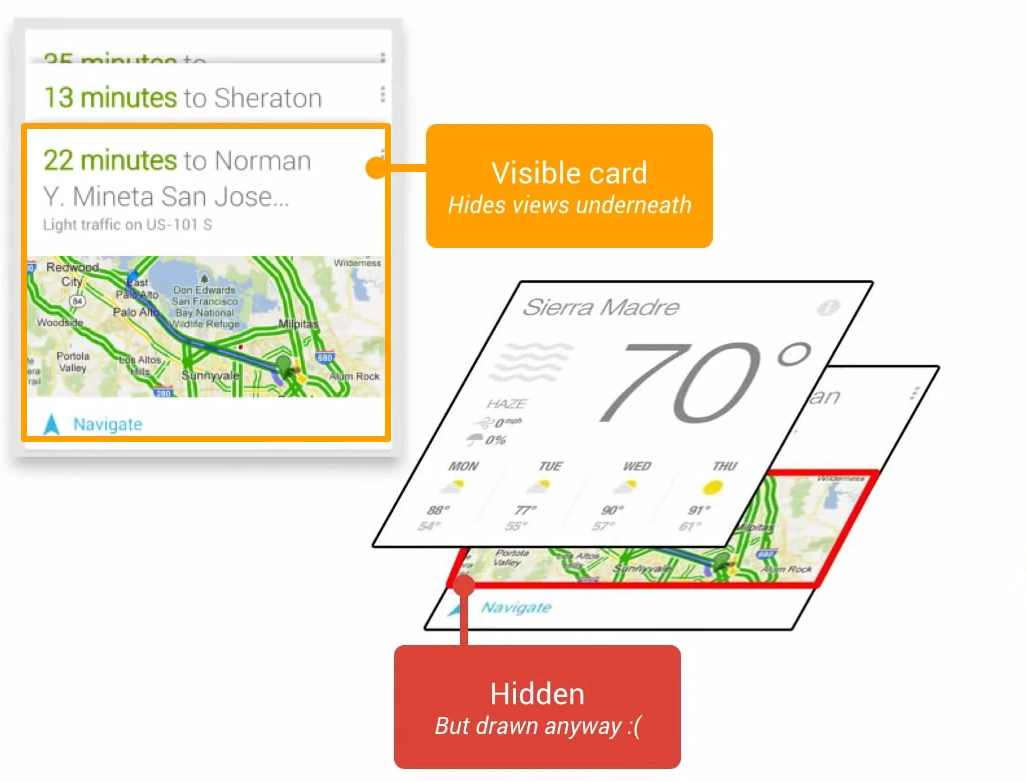
Modern layouts are a double-edged sword: they provide beautiful UIs but can lead to significant overdraw. To maximize performance, you must reduce Overdraw!
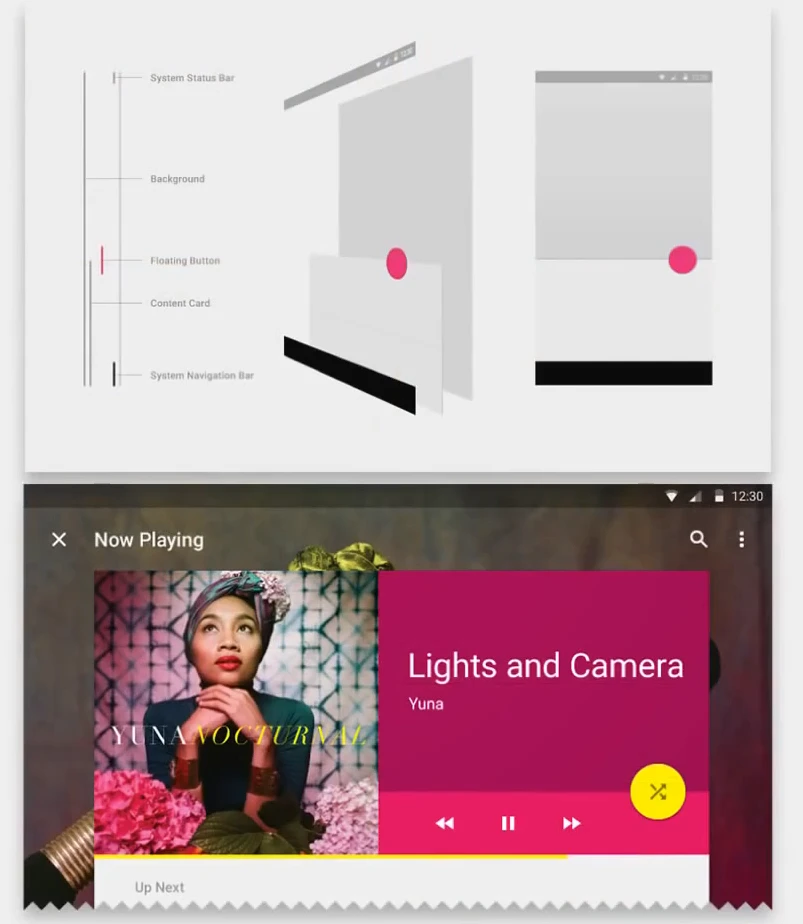
Tracking Overdraw
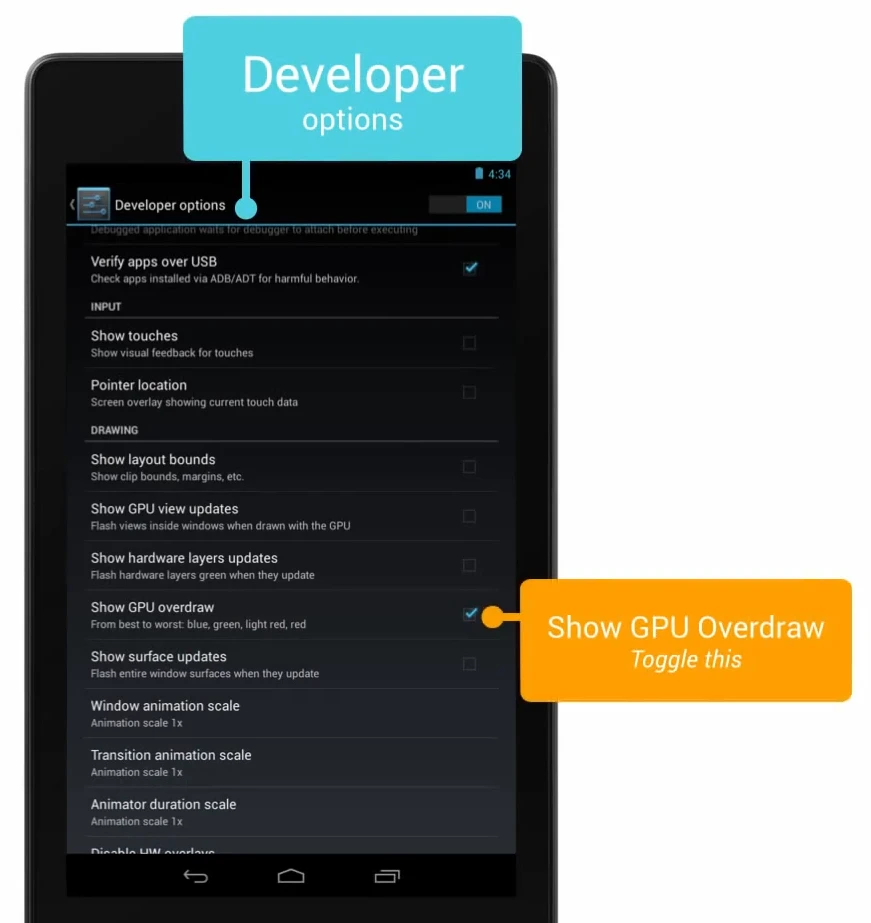
Android provides on-device tools to visualize overdraw. In Settings -> Developer Options, enable “Show GPU Overdraw”:
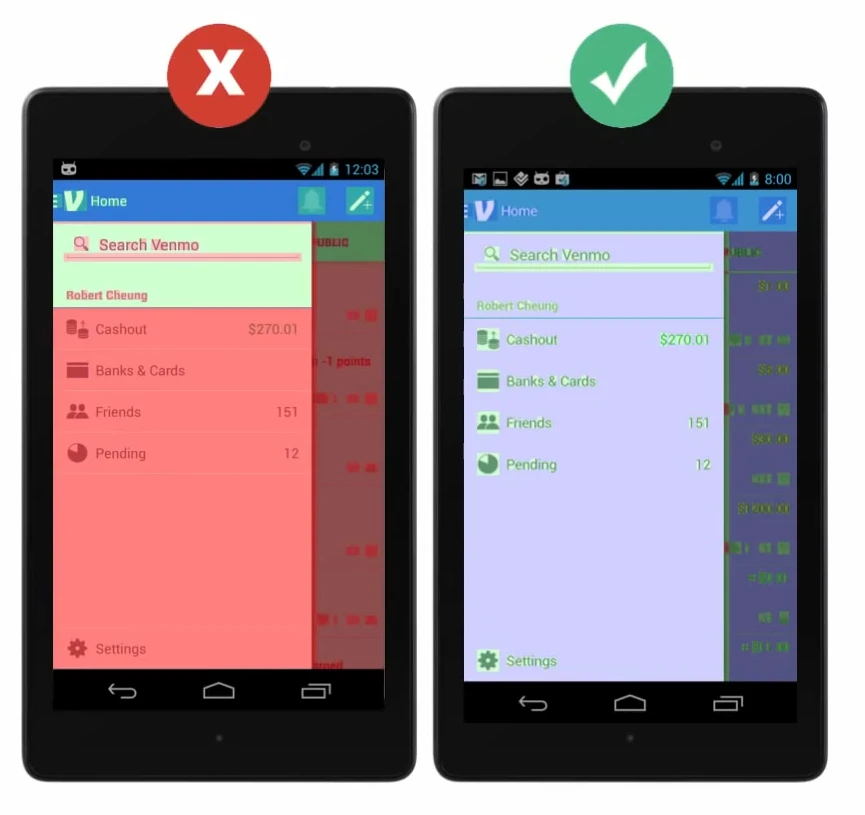
Android uses various colors to represent the degree of overdraw. If no overdraw occurs, you see the original color. Other colors represent different levels of excessive drawing:
- Blue: 1x overdraw (pixel drawn 2 times)
- Green: 2x overdraw (pixel drawn 3 times)
- Light Red: 3x overdraw (pixel drawn 4 times)
- Dark Red: 4x or more overdraw (pixel drawn 5 or more times)
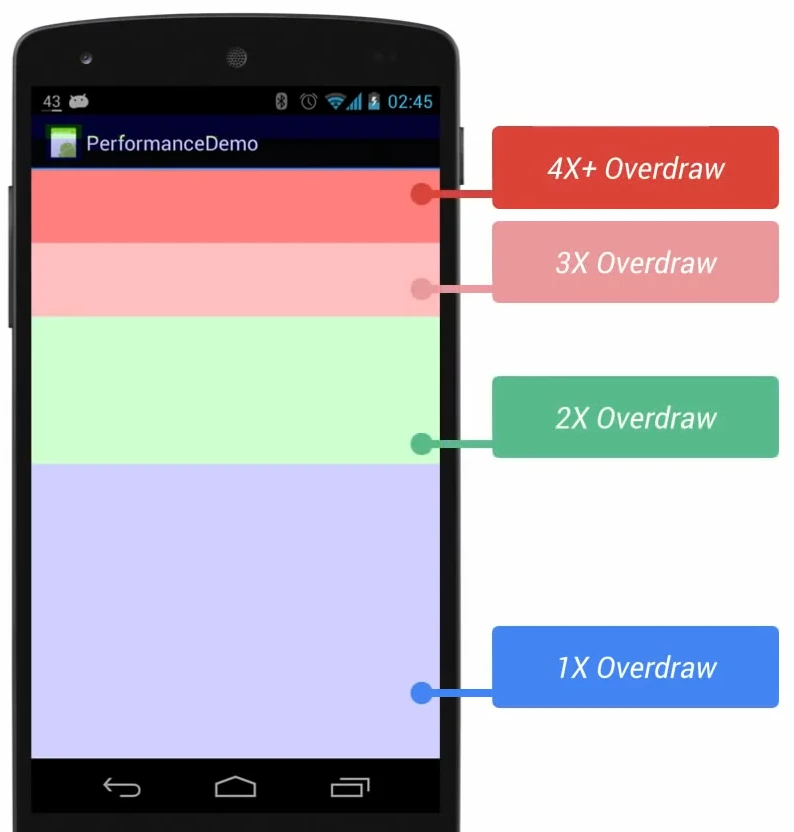
Your goal should be to minimize overdraw, aiming for more blue/original colors rather than red:
Root Causes of Overdraw
While overdraw often comes from overlapping views, developers should pay special attention to unnecessary backgrounds.
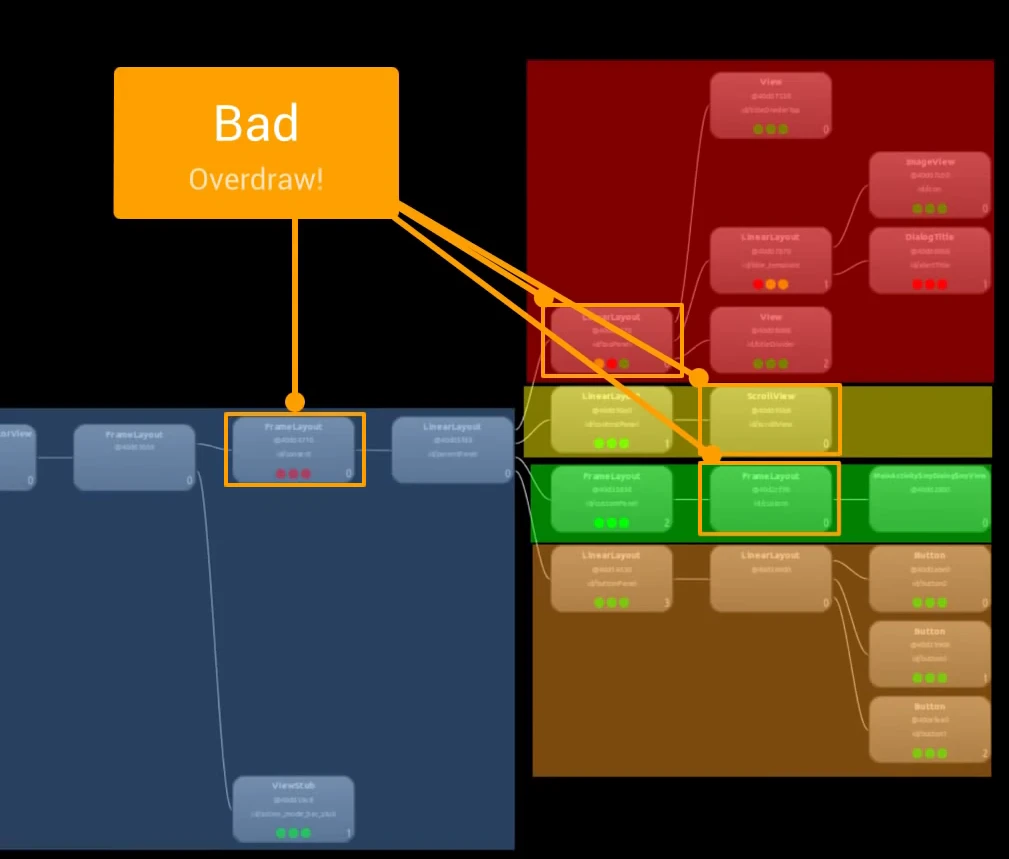
For instance, if every View in your hierarchy has its own background, you’ll end up like the first image. After removing unnecessary backgrounds (default window backgrounds, layout backgrounds, or invisible images/text backgrounds), the result looks like the second image, with almost zero overdraw.
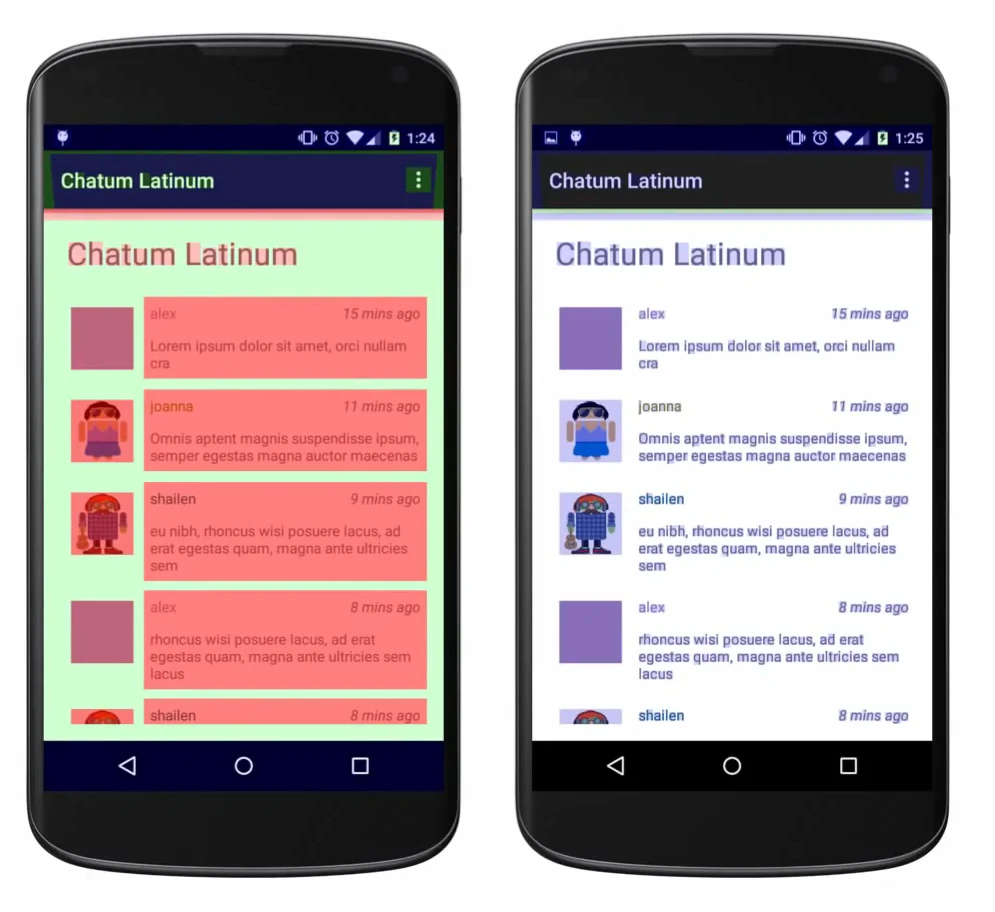
One simple trick is removing the default theme background of the window:
1 | this.getWindow().setBackgroundDrawableResource(android.R.color.transparent); |
Perf Matters
Keep calm, profile your code, and always remember, Perf Matters.
Appendix
For more in-depth reading on overdraw and its optimization, check out these two articles on my blog:
About Me && Blog
Below is my personal intro and related links. I look forward to exchanging ideas with fellow professionals. “When three walk together, one can always be my teacher!”
- Blogger Intro
- Blog Content Navigation: A guide for my blog content.
- Curated Excellent Blog Articles - Android Performance Optimization Must-Knows
- Android Performance Optimization Knowledge Planet
One walks faster alone, but a group walks further together.