

Android Performance

Android Performance

Focus on Android Performance

loading
Android Performance Patterns: Understanding VSYNC

Series Catalog:

  1. Overview of Android Performance Patterns
  2. Android Performance Patterns: Render Performance
  3. Android Performance Patterns: Understanding Overdraw
  4. Android Performance Patterns: Understanding VSYNC
  5. Android Performance Patterns: Profile GPU Rendering

Unbeknownst to most developers, there’s a simple hardware design that defines everything about how fast your application can draw things to the screen.

You may have heard the term VSYNC - VSYNC stands for vertical synchronization and it’s an event that happens every time your screen starts to refresh the content it wants to show you.

Effectively, VSYNC is the product of two components: Refresh Rate (how fast the hardware can refresh the screen), and Frames Per Second (how fast the GPU can draw images). In this video, Colt McAnlis walks through each of these topics and discusses where VSYNC (and the 16ms rendering barrier) comes from, and why it’s critical to understand if you want a silky smooth application.

Basic Concepts

To develop a high-performance application, you first need to understand how the hardware works. The perceived speed of an app is often misunderstood as a raw hardware processing problem, but the real root is often rendering performance. To improve rendering, you must understand VSYNC.

Android Performance Patterns: Understanding Overdraw

Series Catalog:

  1. Overview of Android Performance Patterns
  2. Android Performance Patterns: Render Performance
  3. Android Performance Patterns: Understanding Overdraw
  4. Android Performance Patterns: Understanding VSYNC
  5. Android Performance Patterns: Profile GPU Rendering

One of the most problematic performance problems on Android is the easiest to create; thankfully, it’s also easy to fix.

OVERDRAW is a term used to describe how many times a pixel has been re-drawn in a single frame of rendering. It’s a troublesome issue, because in most cases, pixels that are overdrawn do not end up contributing to the final rendered image. As such, it amounts to wasted work for your GPU and CPU.

Fixing overdraw has everything to do with using the available on-device tools, like Show GPU Overdraw, and then adjusting your view hierarchy in order to reduce areas where it may be occurring.

What is Overdraw?

At the beginning of the video, the author uses a house painter as an analogy: painting a wall is hard work, and if you have to repaint it because you don’t like the color, the first layer was a waste of effort. Similarly, in your application, any work that doesn’t end up on the final screen is wasted. When you try to balance high performance with perfect design, you often run into a common performance issue: Overdraw!

Overdraw represents a situation where a single pixel on the screen is painted more than once within a single frame. As shown in the image below, imagine a stack of overlapping cards. The active card is on top, while the inactive ones are buried beneath. This means the effort spent rendering those buried cards is wasted because they are invisible to the user. We are wasting GPU time rendering things that don’t contribute to the final image.

Android Performance Patterns: Render Performance

Series Catalog:

  1. Overview of Android Performance Patterns
  2. Android Performance Patterns: Render Performance
  3. Android Performance Patterns: Understanding Overdraw
  4. Android Performance Patterns: Understanding VSYNC
  5. Android Performance Patterns: Profile GPU Rendering

Rendering performance is all about how fast you can draw your activity, and get it updated on the screen. Success here means your users feeling like your application is smooth and responsive, which means that you’ve got to get all your logic completed, and all your rendering done in 16ms or less, each and every frame. But that might be a bit more difficult than you think.

In this video, Colt McAnlis takes a look at what “rendering performance” means to developers, alongside some of the most common pitfalls that are ran into; and let’s not forget the important stuff: the tools that help you track down, and fix these issues before they become large problems.

Android Rendering Knowledge

When you think you’ve developed a world-changing app, your users might not agree. They might think your app is slow and laggy, failing to achieve the smoothness they expect, let alone changing the world. Recycle bin, here it comes! Wait! My app is perfectly smooth on my Nexus 5? How can you say it’s slow? If you know anything about Android fragmentation, you’d know that many low-end phones don’t have the powerful processor and GPU of a Nexus 5, nor do they have an unpolluted stock system.

If a large number of users complain that your app is laggy, don’t just blame their hardware. Sometimes the problem lies within the app itself, meaning your Android app has serious rendering performance issues. Only by understanding the root cause can you solve the problem effectively. Thus, knowing how Android rendering works is essential for any Android developer.

Overview of Android Performance Patterns

Series Catalog:

  1. Overview of Android Performance Patterns
  2. Android Performance Patterns: Render Performance
  3. Android Performance Patterns: Understanding Overdraw
  4. Android Performance Patterns: Understanding VSYNC
  5. Android Performance Patterns: Profile GPU Rendering

On January 6, 2015, Google officially released a series of short videos about Android performance optimization titled Android Performance Patterns. This series is available on YouTube.

Android Performance Patterns Overview

Official Introduction:

Android Performance Patterns is a collection of videos focused entirely on helping developers write faster, more performant Android Applications. On one side, it’s about peeling back the layers of the Android System, and exposing how things are working under the hood. On the other side, it’s about teaching you how the tools work, and what to look for in order to extract the right perf out of your app.

But at the end of the day, Android Performance Patterns is all about giving you the right resources at the right time to help make the fastest, smoothest, most awesome experience for your users. And that’s the whole point, right?

In short, it’s a series of videos explaining Android performance. These videos are very short, typically between 3 to 5 minutes. The speakers talk very fast, which was quite a challenge for non-native listeners before subtitles were available. The good news is that these videos now have full subtitles.

While the videos are short, they are packed with information. A single sentence mentioned by the speaker might require hours of research to understand the underlying principle or how to use a specific debugging tool. This means the series doesn’t directly teach you “how to optimize your app” step-by-step; rather, it tells you what you need to know about Android performance so that you know which tools to use, what steps to take, and what goals to aim for.

Android Memory Optimization (3) - Viewing Original Bitmaps in MAT

This is the final article in our MAT series, detailing how to reconstruct original images from memory snapshots to debug leaks.

  1. Android Memory Optimization (1) - Introduction to MAT
  2. Android Memory Optimization (2) - Advanced MAT Usage
  3. Android Memory Optimization (3) - Viewing Original Bitmaps in MAT

When using MAT to analyze Android memory, you’ll frequently encounter Bitmap and BitmapDrawable$BitmapState objects. In many cases, these Bitmaps consume the majority of the heap. Memory leaks caused by Bitmaps are especially critical and must be handled promptly. When a potential image-related leak is found, seeing the actual image contents can be invaluable for diagnosis.

This article explains how to restore a Bitmap array object in MAT back into a viewable image.

Android Memory Optimization (2) - Advanced MAT Usage

This is the second article in our MAT series, focusing on advanced techniques for analyzing memory issues in Java and Android applications.

  1. Android Memory Optimization (1) - Introduction to MAT
  2. Android Memory Optimization (2) - Advanced MAT Usage
  3. Android Memory Optimization (3) - Viewing Original Bitmaps in MAT

Characteristics of Java Memory Leaks

  • Main features: Reachable but Useless.
  • Useless: Objects created but not released after they are no longer needed.
  • Inefficient: Re-creating new objects for tasks where existing ones could be reused.

Advanced MAT Techniques

Dumping Memory with Android Studio

Modern versions of Android Studio make capturing heap dumps easy:
Android Studio Memory Profiler

Android Memory Optimization (1) - Getting Started with MAT

This is the first article in the series on using the MAT tool. This series consists of three articles, detailing how to use MAT to analyze memory issues, whether they are Java application memory issues or Android application memory issues:

  1. Android Memory Optimization (1) - Getting Started with MAT
  2. Android Memory Optimization (2) - Advanced MAT Usage
  3. Android Memory Optimization (3) - Opening Original Bitmap Images in MAT

Introduction to MAT

What is MAT?

MAT (Memory Analyzer Tool), a memory analysis tool based on Eclipse, is a fast and feature-rich JAVA heap analysis tool. It helps us find memory leaks and reduce memory consumption. Using the memory analysis tool to analyze numerous objects, quickly calculate the size occupied by objects in memory, see who is preventing the garbage collector from reclaiming, and visually view the objects that may cause this result through reports.
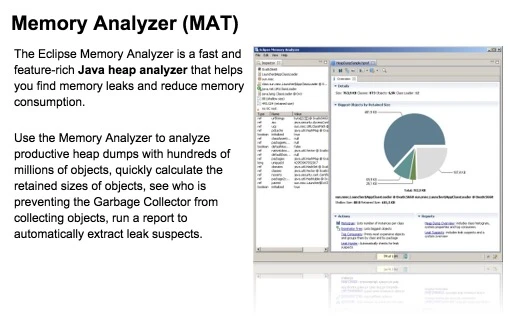
image

Of course, MAT also has an independent version that doesn’t rely on Eclipse, but this version requires converting the file generated by DDMS before it can be opened in the standalone version of MAT when debugging Android memory. However, the Android SDK already provides this Tool, so it is also very convenient to use.


Android Performance Case Study Follow-up

Introduction

This article is a translation of Android Performance Case Study Follow-up by the renowned Romain Guy. It explores several techniques, methodologies, and tools for Android performance optimization.


Translation

Two years ago, I published Android Performance Case Study to help Android developers understand the tools and techniques needed to identify, track, and optimize performance bottlenecks.

That article used the Twitter client Falcon Pro as a case study. Its developer, Joaquim Vergès, was kind enough to let me use his app as an example and quickly addressed the issues I found. Fast forward to recently: Joaquim was building Falcon Pro 3 from scratch. Before its release, he contacted me about a scrolling performance issue. Once again, I had to analyze it without access to the source code.

Android Tips Round-Up, Part 5

Here’s the final round-up of Android tips I’ve been posting.

I’ve officially run out of things to post. If I ever come across something new I’ll post it but it won’t be daily anymore. It’s been fun everyone!

Compiling Android Lollipop Firmware for Nexus 5

Following my previous article, Using Android Studio to View Android Lollipop Source Code, we know that simply reading code has its limits—understanding can remain superficial and easily forgotten. In contrast, code you’ve personally written or modified tends to leave a much deeper impression, and the process becomes easier to grasp during the implementation phase. While studying the source code, being able to modify it, run it on a phone, and see the results firsthand significantly boosts both learning efficiency and enthusiasm. This article explains how to compile the Android Lollipop source code yourself and run it on a Nexus 5.

Why compile your own firmware instead of using Google’s factory images?
Google’s factory images are “User” builds, which are highly restrictive and prevent you from pushing files to the system at will. Compiling your own “Userdebug” build gives you the freedom and root access needed for deep development.

Android Performance Optimization - Introduction to Systrace (Part 1)

Note: This content is outdated. Please refer to the new Systrace Series Articles for updated information.

This is the first article in the Android Performance Optimization Tools series. This series mainly introduces the tools used during the Android performance optimization process, how to use these tools to discover problems, and how to solve them. In terms of performance optimization, Android provides many performance tools for everyone to use. Following our consistent “discover problem - solve problem” thinking, discovering the problem is the most important part. Trying to solve a problem without first identifying it properly often leads to half the effort for twice the result.

In this article, we’ll start with a brief introduction to the Systrace tool.

Introduction to Systrace

Systrace is a performance data sampling and analysis tool introduced in Android 4.1. It helps developers collect execution information from key Android subsystems (such as SurfaceFlinger, WindowManagerService, and other critical Framework modules, services, and the View system), allowing for a more intuitive analysis of system bottlenecks and performance improvements.

Systrace’s capabilities include tracking system I/O operations, kernel workqueues, CPU load, and the health of various Android subsystems. On the Android platform, it’s composed of three main parts:

  • Kernel Space: Systrace leverages the ftrace feature in the Linux Kernel. Therefore, to use Systrace, the relevant ftrace modules in the kernel must be enabled.
  • Data Collection: Android defines a Trace class that applications can use to output statistical information to ftrace. Additionally, the atrace program in Android reads statistical info from ftrace and passes it to data analysis tools.
  • Data Analysis Tools: Android provides systrace.py (a Python script located in Android SDK directory/platform-tools/systrace that calls atrace internally) to configure data collection (such as tags, output filename, etc.), collect ftrace statistics, and generate a resulting HTML file for user viewing. Essentially, Systrace is a wrapper around the Linux Kernel’s ftrace. Applications need to utilize the Trace class provided by Android to use Systrace.

Official documentation and usage for Systrace can be found here: Systrace

Viewing Android Lollipop Source Code with Android Studio

Android Studio

As Google’s “own son,” the Nexus phone series receives special treatment that is obvious to everyone. After Android 5.0 was released, the Nexus 5 was updated to the latest system immediately. Similarly, Android Studio, as Google’s official IDE, is highly valued. I switched from Eclipse to Android Studio right from the start, upgrading from the initial beta versions all the way to the current 1.0 stable version (1.1 was released today, and I’ve already upgraded).

Android Performance Optimization: Overdraw - Practical Application

Introduction

The previous article covered the theory of overdraw and tools to detect it. While iOS users rely on Apple’s curation, Android users rely on developers’ discipline. Unfortunately, many market-leading Android apps still suffer from significant overdraw issues. As a developer, I want to see Android bridge and eventually surpass the experience gap with iOS.

This post walks through a practical overdraw optimization process. Since every app is different, these steps are a reference to help you start your own optimization journey.

If you missed the theory part, check it here: Android Performance Optimization: Overdraw (Part 1)